

TimelinesAI integration with Zoho CRM allows turning all new incoming WhatsApp contact into entries in almost any Zoho module (Leads, Contacts, Deals, and many others). In this post, we will take it one step further and describe how you can automatically assign an entry ( ex: a Lead) generated from a WhatsApp contact to a particular team member in Zoho CRM.
You don’t need any technical expertise for integration, and it can be completed with just a few clicks.
- Connect Zoho CRM to TimelinesAI at https://app.timelines.ai/integrations/zoho_crm/
- Activate TimelinesAI WhatsApp integration with Zoho on the same page
- In this example we will assume that the “Sync destination” was set to “Leads”. But it can be any Zoho module.
- Open your Zoho CRM account > click the settings icon > click “Assignment rules”
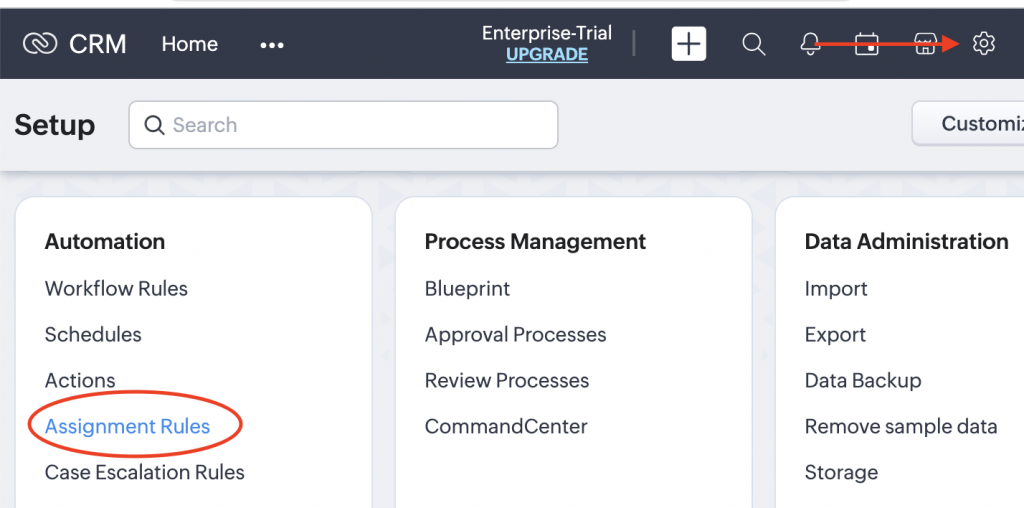
- Click “Create Assignment Rule”:
- Choose module: select the module where your WhatsApp contacts are synchronized to. This would be the same module you have selected as “Sync destination” at https://app.timelines.ai/integrations/zoho_crm/
- Enter desired Rule Name and Description
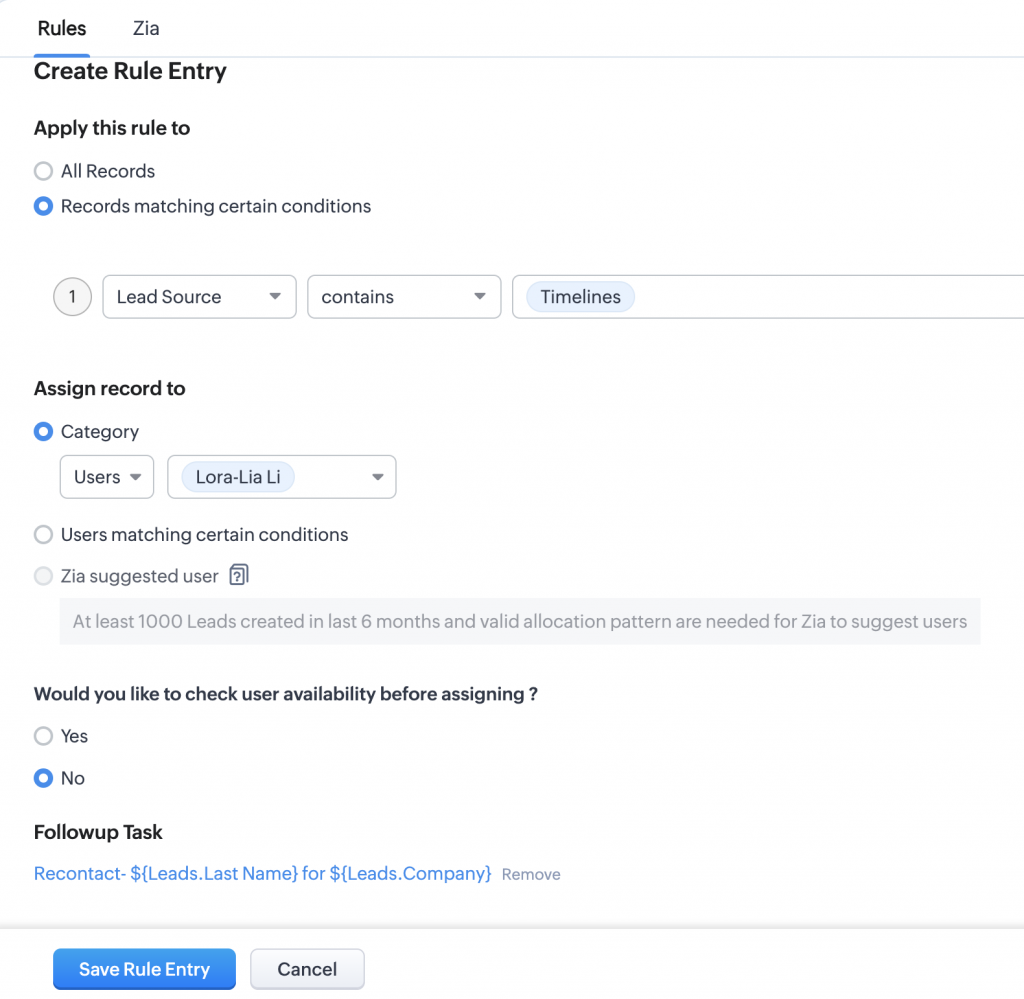
- Create a Rule Entry:
- Apply this rule to: select Records matching certain conditions
- Select Lead Source in the first drop down
- Select Contains in the second drop down
- Type Timelines in the last box and press “Enter”
- Assign record to: select Users and the desired Zoho User in the second drop down
- Setup availability check (optional)
- Associate a Follow up task (optional)
- Save your entry

And you are done. Now Zoho CRM leads that were created via TimelinesAI integration will be automatically assigned to a particular Zoho member.
Note: if you are synchronizing WhatsApp contacts to a different Zoho CRM Module, simply select the desired module at step 5.
Check article that can be useful to you:
- Learn more about the Zoho and WhatsApp integration in our Playbook: https://timelines.ai/zoho-and-whatsapp-integartion-playbook/
- Setup the Zoho CRM Integration on TimelinesAI
-
Automatically Filter and Assign Contacts in Zoho Based on WhatsApp Country Codes


