

Companies rely on several different tools to manage tasks, communicate, and maintain customer relationships. From CRMs to project management tools and internal communication platforms, it becomes quite difficult for your team to stay aligned with this constant inflow of data and communication.
This constant context-switching between applications also affects productivity. Studies show that around 45% of people experience a decrease in productivity when they frequently switch contexts.
The good news? You can save time and reduce information silos by automating and integrating your applications. For example, using TimelinesAI’s native integration with Zapier, you can automate work updates and streamline your workflows.
This guide specifically focuses on integrating monday.com with WhatsApp to send automated messages based on events within your Monday.com CRM. We will talk about how you can set it up and why your business needs it.
What are the Benefits of Automating WhatsApp Messages?
Automating WhatsApp messages with tools like Zapier or TimelinesAI can significantly boost your team’s productivity and customer satisfaction. Here are some of the key benefits:
Save Time: Your team can save a significant amount of time by not having to manually send individual messages every time a contact’s status changes. This will free up their time to focus on other complex tasks that need a human touch.
Improved Communication: Automated messages will keep your customers informed throughout their buying journey. They’ll receive timely updates on their orders, appointments, or any other relevant information – all without any hassle.
Increased Customer Satisfaction: Customers love feeling valued, and prompt communication can help you with that. Timely communication through automated messages will help build trust and keep your customers happy (the ultimate goal, right?). It also shows you’re on top of things and care about keeping them informed.
Reduced Errors: Manual tasks can sometimes lead to errors. Automated messages ensure consistent and accurate communication every time, maintaining a consistent brand voice.
Increased Lead Generation and Conversion: You can set up automated messages to reach out to new leads based on their status changes (e.g., “downloaded a brochure”). This allows for immediate engagement and increases the chances of converting them into customers.
Reduced Bottlenecks: Real-time status updates help you identify potential roadblocks before they become major issues. You can catch problems early and address them swiftly to keep your projects and communication flowing smoothly.
Improved Project Management: Automated WhatsApp messages based on Monday.com board updates provide real-time visibility into project progress for all team members. This promotes better collaboration, improves task ownership, and allows for quicker adjustments if needed.
TL;DR: Automating WhatsApp messages with Monday.com saves time, improves communication, and simplifies processes for increased customer satisfaction, lead generation, and project management.
Feeling pumped about these benefits? Now, let’s go through the process of setting it all up.
How to Set Up Automated WhatsApp Messages with TimelinesAI?
Here is a step-by-step guide on how you can automate WhatsApp alerts using TimelinesAI and Zapier.
1. Setting Up the Zap
- In your Zapier account, click “Create Zap.”
- Choose Monday as the trigger app and TimelinesAI as the action app.
- Select the trigger event as “Specific Column Value Changed in the Board.”
- Choose the action “Send Message to New Chat“.
- Click “Try it” to move on to the next step.

2. Connecting Your Monday Account
- Zapier will need access to your Monday.com account. So, first, select your Monday.com account.

- Go to your Monday account, click your profile picture, and select “Developers.”
- Copy your API key from this section.
- Use the copied API key to connect your Monday CRM to Zapier.

3. Configuring the Trigger
Now it’s time to tell Zapier what to watch for on Monday.com.
- Choose the specific board and column you want to monitor for changes.
- Select the “WhatsApp contacts” board (or the relevant board) from your Monday CRM.
- Choose the “Status” column (or the specific column you want to track) from the board.

4. Test the Trigger (Optional)
Before proceeding, you can test the trigger to ensure it works as expected. Zapier will search for recent changes in the chosen board and column. If it finds one, you’ll receive a notification.

5. Setting Up the Action
- This step will help you connect TimelinesAI.
- Go to your TimelinesAI workspace on Zapier and copy your token.
- Paste the token to connect your TimelinesAI account with Zapier.

6. Set Up the Action
Now for the fun part – crafting your message! Choose “Send Message to a New Chat” as the action for your Zap. This tells Zapier to send a WhatsApp message whenever the trigger fires.
To customize the message, fill in the required fields:
- WhatsApp Account: Enter the WhatsApp number from which you want to send messages.
- Phone Number: Provide the recipient’s phone number (including country code).
- Message Text: Craft a personalized message that will be sent when the trigger is activated.
- You can use dynamic fields from the Monday board to personalize the message further (e.g., include the contact name or the new status value).

7. Testing and Publishing the Zap
Once you’ve connected your accounts and configured your Zap, it’s time to test it.
- Click the “Test Zap” button.
- Zapier will attempt to send a test message based on your settings.
- Review the test results and make any necessary adjustments.
- If it looks good, hit publish, and your automated messages are ready to roll!

Congratulations! Your Zap is now live. Whenever a specific column value changes in your chosen Monday board, a WhatsApp message will be sent to the designated recipient with your personalized message.
Here’s how this will work in action:
Imagine you have a Monday.com board for your design team. One column tracks the “Stage” of each project (e.g., “Concept,” “Revisions Needed,” “Approved”). When a design moves from “Revisions Needed” to “Approved,” Zapier recognizes the change.
Zapier detects the update in your Monday.com board and triggers the Zap you’ve created. Using the secure token you provided, Zapier sends a notification to TimelinesAI. TimelinesAI automatically sends a message to your design team through a designated channel (e.g., a specific group chat or individual notifications).
This notification keeps the team informed and updated. This is just one example. You can adjust the trigger and notification message based on your needs.
Now, let’s see how TimelinesAI builds on that efficiency with even more advanced features.
Beyond Basic Workflows: Advanced Features with TimelinesAI
While the option of sending automated WhatsApp messages based on Monday.com updates is useful, TimelinesAI offers additional features that can further enhance your communication and workflow automation. Here’s how TimelinesAI can help you achieve even more:
Shared Inbox for Multiple Numbers: Imagine managing multiple WhatsApp business lines for different teams. TimelinesAI makes things easy by unifying them into a single, shared inbox. All conversations from multiple WhatsApp numbers flow seamlessly into one central location. This ensures a consistent experience for your customers and lets your team collaborate easily.
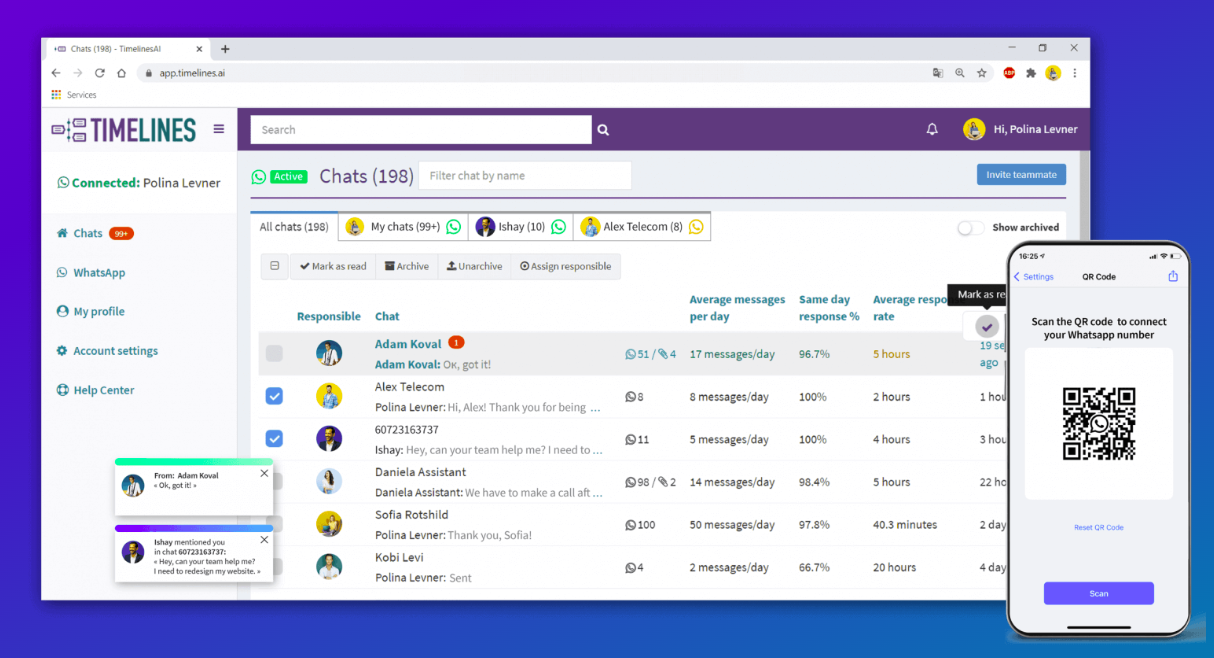
Effortless Response Management: TimelinesAI integrates with ChatGPT and provides an AI-powered autoresponder to handle frequently asked questions or basic inquiries. Need to answer questions about order status or business hours? Set up an autoresponder to handle them instantly! This allows your team to focus on resolving intricate customer issues.

Pre-written Templates for Quick Responses: TimelinesAI allows you to create pre-defined message templates for common responses or greetings. These templates can be easily accessed and used by your entire team, ensuring consistent communication and saving time.

Enhanced Team Communication: Sometimes, you need the collective brainpower of your team to solve a customer issue. For times like that, TimelinesAI’s group chat feature offers seamless communication and collaboration. It allows for quick decision-making, brainstorming, and project updates. You can also exchange internal comments and set follow-up reminders for teammates so that nothing gets missed.

Efficient Customer Updates: TimelinesAI allows you to send bulk messages to targeted customer segments. This is perfect for sending promotional offers, product updates, or service announcements to a large group of contacts who have opted-in for such communication.
Also Read: Step-by-Step Instructions for Sending Bulk WhatsApp Messages: A Comprehensive Guide
Data-Driven Decisions: With TimelinesAI, you get access to comprehensive reporting and analytics on your WhatsApp communication. You can track key metrics like message delivery rates, response times, and agent performance. Use this data to understand what’s working for you and what’s not. Then, you can optimize your communication strategy accordingly.

So this is how TimelinesAI can help your team work smarter, not harder.
Conclusion
Integrating Monday.com with TimelinesAI through Zapier allows you to automate essential communication tasks and streamline your workflows. This not only saves your team valuable time but also ensures consistent and timely updates for both internal and external stakeholders.
TimelinesAI goes a step further, offering additional features like a shared inbox, comprehensive analytics, and bulk messaging capabilities.
Ready to further explore Monday.com WhatsApp integration? Learn more about WhatsApp to CRM integration. Check out our monday.com and WhatsApp integration Playbook here.


