

Integrating WhatsApp with Zoho CRM transforms customer support by consolidating communication, automating workflows, and improving efficiency. With WhatsApp’s wide user base and Zoho CRM’s organizational tools, businesses can meet rising customer expectations for quick and effective service. This integration centralizes interactions, reduces manual tasks, and ensures consistent, personalized communication – all while cutting operational costs.
In this guide, you’ll learn how to set up WhatsApp integration with Zoho CRM, the features it offers, and how to optimize workflows for a more responsive support system. By the end, you’ll have actionable steps to enhance customer satisfaction and streamline operations.
WhatsApp Integration in Zoho CRM Basics

WhatsApp CRM Integration Overview
Integrating WhatsApp with Zoho CRM is changing the way U.S. businesses manage customer support, offering a centralized system that keeps records organized and ensures consistent communication. This integration pulls all customer interactions – whether they’re quick questions or detailed support requests – into one platform, making it easier to provide tailored assistance.
For businesses in the U.S., this setup significantly boosts response times, a crucial factor in meeting today’s customer expectations for fast replies. By automating responses to common questions, businesses can handle inquiries more efficiently. Plus, every interaction is automatically logged in the CRM, keeping customer records up-to-date and aiding in strategic decision-making. With WhatsApp’s global reach of over 2 billion users, combined with Zoho CRM’s structured reporting and support tools, businesses can elevate their customer service game. The CRM dashboard gives a clear view of customer details, product information, follow-ups, and support tickets – all in one place.
Now that the benefits are clear, let’s look at what you need to get started with the integration.
Integration Requirements
Before diving into the setup, there are three key components U.S. businesses need to have in place:
- WhatsApp Business Account: A WhatsApp Business account is essential. Unlike personal accounts, it offers the commercial tools needed for customer support operations.
- WhatsApp Cloud API Access: You’ll need to set up API access through Facebook for Developers. This involves creating a Facebook for Developers account and obtaining API credentials (like an API key), which act as the bridge between WhatsApp and Zoho CRM.
- Active Zoho CRM User Access: Ensure you have the necessary permissions to install and configure the integration. For Zoho CRM’s native WhatsApp Business Messaging integration, you’ll need to add your business number under Setup >> Channels >> Business Messaging.
Additionally, businesses must use pre-approved WhatsApp templates to initiate conversations. These templates need to align with WhatsApp’s messaging policies to ensure compliance.
Available Integration Features
Once the integration is live, businesses gain access to several features that simplify customer support and improve efficiency. Here’s what you can expect:
- In-CRM Messaging: Support agents can send and receive WhatsApp messages directly within the Zoho CRM interface. This keeps the full context of each interaction easily accessible alongside customer records.
- Automated Chat Logging: Every WhatsApp message – whether incoming or outgoing – is automatically logged and linked to the relevant customer record. This creates a reliable audit trail for compliance, training, and support purposes.
- Message Templates and Automation: Businesses can create personalized templates with dynamic fields tailored to individual customers. Automated messages can also be triggered by specific actions or workflow rules, saving time on repetitive tasks while maintaining consistency.
- Smart Filtering and Notifications: Zoho CRM’s filtering tools make it easy to prioritize messages, while real-time notifications alert agents to new WhatsApp messages. This ensures that urgent queries don’t go unnoticed.
- Workflow Integration: WhatsApp notifications can be tied into automated workflows, enabling businesses to set up response sequences, reminders, and escalation processes based on customer behavior or predefined conditions.
- Bulk Messaging Capabilities: From the Leads and Contacts modules, businesses can send personalized bulk WhatsApp messages using pre-approved templates. This feature is perfect for updates, notifications, and follow-ups, streamlining communication at scale.
These features make the WhatsApp-Zoho CRM integration a powerful tool for managing customer interactions while maintaining efficiency and organization.
How to send automated WhatsApp messages from Zoho | Zoho and WhatsApp integration
Setup Instructions
Integrating WhatsApp with Zoho CRM involves three key steps: setting up your WhatsApp Business account with API access, linking it to Zoho CRM, and fine-tuning the integration settings. Keep in mind that obtaining API approval may take some extra time.
WhatsApp Business and Cloud API Setup

Before you can connect WhatsApp to Zoho CRM, you need to build the necessary Meta business framework. Start by creating a Facebook Business Manager account, which acts as the central hub for managing your business activities across Meta platforms. After setting up your account, verify your business by submitting essential documents like your Employer Identification Number (EIN) and business license to confirm its authenticity.
Next, secure a dedicated phone number that isn’t already associated with any WhatsApp account. This number will become your official WhatsApp Business line.
To access the WhatsApp Business API, work with a WhatsApp Business Solution Provider (BSP), as the API isn’t available through app stores. During this process, you’ll receive key credentials – such as an API key, webhook URLs, and access tokens – that are critical for connecting to Zoho CRM.
Connecting WhatsApp to Zoho CRM
Once your WhatsApp Business API is active, the next step is linking it to Zoho CRM. Start by navigating to Zoho CRM’s integration settings, selecting the WhatsApp integration option, and entering your API credentials. Then, set up webhooks to trigger notifications for events like new incoming messages, ensuring seamless synchronization between WhatsApp and Zoho CRM. After completing these steps, test the connection by sending a test message to confirm that messages are flowing correctly in both directions and that customer interactions are being logged accurately. Once verified, you can move on to optimizing your workflows.
Integration Settings Configuration
After successfully connecting WhatsApp to Zoho CRM, customize the integration to align with your support processes. Set up message filtering criteria to help your team prioritize messages based on factors like status, date, or customer segmentation. Create WhatsApp message templates within Zoho CRM using pre-approved formats that include dynamic fields from your customer records. Additionally, establish automated workflow rules to trigger WhatsApp notifications for specific events, such as when a support ticket is created. Configure notification settings to ensure your team receives real-time alerts when new WhatsApp messages arrive.
Customer Support Workflow Automation
Once your WhatsApp–Zoho CRM integration is in place, the next step is to incorporate automation to minimize manual tasks and speed up response times. This not only improves support efficiency but also leads to measurable performance improvements. By configuring automated workflows, you can streamline your support processes even further.
Workflow Automation Setup
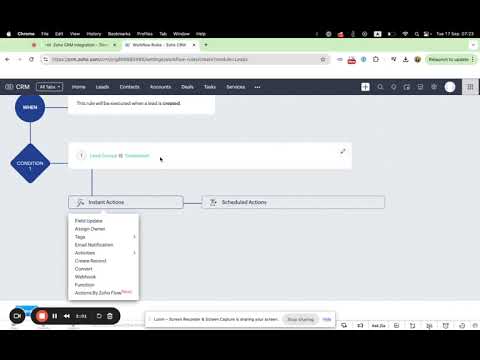
To set up automated workflows in Zoho CRM, start by creating workflow rules. These rules can trigger WhatsApp messages whenever specific CRM events occur, such as updates to a deal stage or the addition of a new lead. You can also configure automated notifications to keep customers informed at critical points in their journey.
Additionally, design custom WhatsApp templates directly within Zoho CRM. These templates can include dynamic fields that pull customer-specific data from your CRM records, ensuring that every message feels tailored. Common templates might include welcome messages, order confirmations, or appointment reminders, all of which help automate routine communications.
AI Chat Summaries and Autoresponders
AI-powered tools can take your customer support to the next level. For example, TimelinesAI offers ChatGPT-based chat summaries and autoresponders that integrate seamlessly with your WhatsApp–Zoho CRM setup. By setting up ChatGPT autoresponders, you can address frequently asked questions during off-hours or when your team is busy. This ensures customers receive immediate replies, while more complex inquiries are escalated to human agents. Personalizing these responses with customer data like purchase history can further enhance satisfaction and reduce the time agents spend researching.
Mass Messaging and Group Support Management
Handling large volumes of customer inquiries becomes much simpler with Zoho CRM’s mass messaging features. Building on the automation tools already discussed, you can implement a broader communication strategy to maximize your support reach. WhatsApp mass messaging is particularly effective for delivering support announcements to a wide audience. By segmenting your audience based on factors like demographics, interests, or purchase history, you can deliver highly targeted messages. Scheduling these campaigns at optimal times, tailored to your audience’s location, ensures better engagement.
For an even more personalized experience, set up automated workflows that trigger conversations based on specific customer actions. This ensures that the right message reaches the right person at the right time.
To create a well-rounded communication strategy, combine WhatsApp with other channels like email and SMS. This multi-channel approach ensures critical support messages reach customers through their preferred platforms while maintaining consistency across all channels. Additionally, tracking key metrics such as open rates and response times can help you fine-tune your WhatsApp strategy for better results.
"Timely assistance and post-service support are key to effective customer relations." – Zoho Blog
sbb-itb-fcadb62
Shared Inbox and Analytics Tools
Bring your team together with a shared workspace that not only centralizes communication but also provides actionable insights through analytics. Combining a shared inbox with performance tracking tools transforms individual customer interactions into a collaborative effort with measurable outcomes. By integrating these tools, your team can align their efforts while gaining valuable insights into customer support performance.
WhatsApp Shared Inbox Setup
Setting up a WhatsApp shared inbox in Zoho TeamInbox allows your team to manage all customer communications – including emails and messages from other channels – in one place. This unified approach ensures every WhatsApp message is addressed promptly while enabling smooth collaboration on customer responses.
To get started, ensure your WhatsApp and Facebook accounts are properly configured as outlined earlier. Once ready, log into Zoho TeamInbox and select WhatsApp under Shared Channels. Assign a descriptive name to the channel for easy identification and choose the appropriate inbox.
Review WhatsApp Client ISV Terms and WhatsApp Client Terms to comply with platform policies. Next, authenticate your Facebook account and link your WhatsApp Business account to finalize the setup. Before going live, use the WhatsApp Sandbox environment to test and validate your configurations.
Adding team members to the shared inbox is simple – either send invites or import users from existing Zoho groups. You can also configure settings to automatically add new teammates and assign threads based on your team’s workflow preferences. This ensures efficient distribution of conversations and prevents any customer inquiry from being overlooked.
The shared inbox enables team members to assign conversations, collaborate on responses, and maintain visibility across all customer interactions. It also supports user-initiated conversations and activates a 24-hour response window for timely follow-ups. With this setup, your team can manage customer inquiries more effectively, improving overall support efficiency.
Support Metrics Tracking
While the shared inbox centralizes communication, analytics tools provide the insights needed to refine your support strategy. Zoho CRM’s analytics capabilities consolidate all customer interactions into one platform, offering a clear view of your support performance.
Zoho SalesIQ‘s tagging feature can help categorize WhatsApp conversations for easier retrieval. With OpenAI integration, tags can even be generated automatically after a chat is closed, saving your team time and reducing manual tasks.
Monitoring message delivery rates is essential to identify and resolve potential issues before they affect customer experience. Engagement metrics can also reveal how well your messages resonate with your audience and whether adjustments or retargeting efforts are needed.
Timely responses are critical. Research from Salesloft shows that responding to a sales lead within 2 minutes significantly increases the chances of securing a meeting, while a delay of just 5 minutes can make it ten times harder to connect with the lead. A 10-minute delay raises the risk by 100 times. These findings highlight the importance of tracking response times through your analytics dashboard.
Key metrics such as message volume, response times, and resolution rates provide a comprehensive view of your support performance. A BI survey found that 67% of users believe dashboards improve decision-making and help identify new opportunities. By designing interactive dashboards, your team can explore data easily and focus on actionable insights. Additionally, integrating AI can automate complex analytics tasks, making your dashboards even more powerful.
For maximum usability, ensure your dashboards are optimized for various devices and tailored to your team’s objectives. Whether you’re aiming to reduce response times, improve resolution rates, or identify peak support hours, a well-designed dashboard can guide your team toward continuous improvement. Use these insights to fine-tune automated workflows and maintain fast, effective customer support.
Best Practices for U.S. Businesses
Delivering excellent customer support through WhatsApp and Zoho CRM requires careful attention to compliance and a well-thought-out communication strategy. U.S. businesses face unique hurdles, from navigating strict data privacy laws to tailoring messages that connect with American audiences. By following these best practices, you can maximize the benefits of integrating these tools while ensuring compliance and creating outstanding customer experiences.
Data Privacy and Compliance Guidelines
When integrating WhatsApp with Zoho CRM, safeguarding customer data is a top priority. Before moving forward, familiarize yourself with federal and state regulations governing data privacy. Businesses in sensitive industries, like healthcare, need to take extra precautions.
For instance, Zoho CRM’s standard setup doesn’t meet HIPAA requirements. If your business handles protected health information, consult legal experts to determine whether additional safeguards are necessary to stay compliant with HIPAA while using WhatsApp integration.
Take the time to review the data handling policies of both Zoho CRM and WhatsApp. Establish clear data retention policies aligned with industry standards, and document your processes to ensure strong data protection. Conduct regular compliance audits to identify and address any vulnerabilities.
To further enhance security, implement two-factor authentication for your team, provide ongoing security training, and develop clear protocols for managing sensitive information. These proactive measures not only protect your data but also build trust with your customers.
Communication Strategy Optimization
Once your workflows are configured, refining your communication strategy can elevate your customer support efforts. Striking the right balance between automation and personalization helps create meaningful interactions that resonate with your audience.
"WhatsApp has become an indispensable channel for customer communication"
Start by creating message templates for common customer interactions, such as welcome messages, order confirmations, appointment reminders, and follow-ups. Personalize these templates using data from Zoho CRM – like names, purchase history, and preferences – to deliver tailored messages at scale.
Use Zoho CRM’s workflow rules to automate responses based on customer actions. For example, you can automatically send WhatsApp messages to re-engage customers who abandon their carts, sign up for events, or hit key milestones. This proactive approach keeps customers engaged while reducing your team’s workload.
"Integrating WhatsApp with your existing system creates a powerful synergy…leading to faster responses and improved customer service"
For a seamless multichannel experience, combine WhatsApp with your email, SMS, and website communication channels. Automate transactional and marketing messages – like shipping updates, product recommendations, and exclusive promotions – to keep customers informed while allowing your team to focus on more complex inquiries.
Monitor metrics such as open rates, response times, and conversions to fine-tune your messaging strategy. Adjust automation processes as needed to ensure maximum effectiveness.
Lastly, maintain a professional tone by setting clear communication guidelines for your team. Train staff on best practices, covering everything from response times to the appropriate use of emojis, formatting, and multimedia content. Regular follow-ups based on customer interactions and support ticket statuses reinforce your commitment to excellent service, helping you build long-term loyalty and earn referrals.
Conclusion
Integrating WhatsApp with Zoho CRM offers a practical solution for U.S. businesses looking to improve customer support and boost engagement while keeping operations efficient. With features like automated workflows, real-time messaging, and detailed analytics, this integration provides a strong framework for delivering outstanding customer experiences.
Getting started requires a structured approach. Begin by connecting your WhatsApp Business API to Zoho CRM and configuring the basic integration settings. Once the foundation is in place, focus on setting up workflow rules that automatically send WhatsApp messages based on triggers such as new leads or customer inquiries. This setup helps improve response times and ensures smoother operations.
Regularly tracking message performance within Zoho CRM is essential. Metrics like open rates, response times, and customer behavior patterns can reveal areas for improvement. Use these insights to fine-tune your message templates and adjust automation triggers, ensuring your communication strategy stays effective.
Personalization plays a key role in building strong customer relationships. Use the rich customer data stored in Zoho CRM – like names, purchase histories, and preferences – to craft WhatsApp messages that feel tailored and relevant. Even automated responses can feel more human and engaging when they’re personalized.
To take customer support to the next level, consider integrating advanced tools like AI-driven chat summaries or autoresponders powered by ChatGPT. These tools allow your team to handle larger volumes of messages without sacrificing the quality of interactions, making it easier to maintain high standards of service.
Throughout the process, prioritizing data privacy and compliance is non-negotiable. Regularly review how data is handled, ensure robust security measures are in place, and align your practices with industry regulations to maintain trust and transparency.
FAQs
How does integrating WhatsApp with Zoho CRM help improve customer support efficiency?
Integrating WhatsApp with Zoho CRM centralizes customer interactions, bringing all communication into one platform. This setup helps your team respond promptly, handle inquiries more efficiently, and minimize delays.
Features such as automated replies, message tracking, and bulk messaging simplify workflows, saving valuable time while maintaining consistent communication. Moreover, this integration supports personalized interactions, enhancing customer satisfaction and streamlining your support operations.
How do I integrate WhatsApp with Zoho CRM for streamlined customer support?
To connect WhatsApp with Zoho CRM, begin by logging into your Zoho CRM account. Go to Setup > Channels > Business Messaging, choose WhatsApp, and then click Details > Integrate. From there, sign in with your Facebook Business account, request access, and follow the on-screen instructions to link your WhatsApp Business account.
Before starting, make sure you have the essentials in place: a Facebook Business Manager account, a verified business, and an active WhatsApp Business account. Once the integration is complete, you can customize message templates and set up automated notifications to streamline customer communication.
How can businesses protect customer data and stay compliant when using WhatsApp and Zoho CRM for support?
To safeguard customer data and stay compliant with regulations, businesses can rely on Zoho CRM’s privacy and security tools, including encryption and advanced privacy controls. Additionally, securing clear customer consent before collecting or processing their data is crucial, aligning with standards like GDPR and HIPAA.
When linking WhatsApp with Zoho CRM, it’s vital to set up the integration with secure data management protocols and utilize encrypted APIs to protect sensitive information. These steps not only ensure legal compliance but also help maintain the trust of your customers.


